Contact Us
[contact-form-7 id="ceb4db8" title="Contact form 1"]

New cybersecurity vulnerabilities are discovered almost daily. From software updates to emerging technologies to new hacking techniques, there are always new attack avenues to discover, patch, and mitigate.
Vulnerability management is an extremely important part of any organization’s information security program. Most compliance regulations require annual assessment and ongoing management, but how do you make that a reality?
This whitepaper will be an in-depth exploration of the TraceInsight Vulnerability Management platform and its capabilities.
TraceSecurity’s Vulnerability Management Platform is our software tool for vulnerability scanning, results management, and remediation tracking. Our information security analysts use it to perform vulnerability assessment services, and our customers use it to perform scanning and management on their own.
The Vulnerability Management module lives within TraceSecurity’s proprietary software platform, TraceInsight. TraceInsight also houses the TracePhishing and TraceEducation modules for end-user security awareness testing and training.
Add those involved in your vulnerability management activities as Users within the platform. Users are managed at the TraceInsight level through individual creation or .csv upload. Each User must be assigned one of two roles: VulnManagerModuleAdmin or VulnManagerModuleAccess.
TraceSecurity implemented multi-factor authentication for TraceInsight in August 2023. MFA works through any one-time passcode (OTP) application such as Google Authenticator, Microsoft Authenticator, Symantec VIP Access, and more. Email and SMS-based MFA are not currently supported.
TraceSecurity’s vulnerability assessment and management is powered by the Qualys Scanner Appliance and the Qualys Vulnerability KnowledgeBase. The Qualys library includes over 25,000 vulnerability signatures with frequent updates as more are discovered.
Qualys classifies vulnerability in three types:
Through Qualys, TraceSecurity offers both authenticated and unauthenticated scanning options. Unauthenticated scans are performed against the publicly available information and services of your company. Authenticated scanning, also called credentialed scanning, allows for more thorough scans. By taking credentials into consideration, scans can find vulnerabilities that could be compromised through more privileged access.
With our Vulnerability Management platform, you can enjoy all the benefits of Qualys with our simplified module and dedicated support team.
The TraceInsight Vulnerability Management Platform includes 12 tabs for functionality: Scans, Scan Schedules, Scanner Status, Launch Scan, Create Scan Schedule, Hosts, Authentication, Remediate, View Scan Results, Export Scan Results, Generate Report, and Documentation.
The Scans tab is where you can see your launched scans and their current statuses. Scans are sortable by Title, Targets, Qualys Reference ID, Launch Date, Duration, and Status. You can manually pause, resume, and cancel scans from this tab.
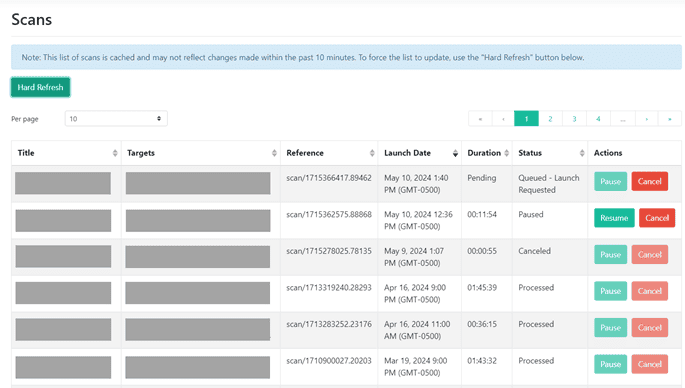
Each scan will show one of the following statuses:
The Scan Schedules tab is where you can see all of your scan schedules and their current status. Status, Title, Targets, Scanner Appliance, Option Profile, and Next Launch Date can sort scan schedules. You can modify or delete existing scan schedules from this tab.
Scan Schedules will either be Active or Inactive:
The Scanner Status tab is where you can confirm that your scanner is online and properly configured within your environment.
The Launch Scan tab allows you to configure an on-demand scan to run immediately. Separate from your scheduled scans, you may want to run one-off scans when zero-day vulnerabilities are discovered or when you make significant changes to your environment.
To launch an on-demand scan, you’ll need to fill in the following fields:
The Create Scan Schedule tab follows the same setup as the Launch Scan tab with a few additional fields. Fill in the Title, Option Profile, Scanner Appliance, IPs/Ranges, and Exclude IPs/Ranges just like above. You’ll then need to configure the following additional fields:
Once scans have been completed, you can use the Hosts tab to view and manage the hosts identified as active during scans. Hosts are categorized by IP address, hostname, internal or external classification, operating system, and criticality. Results will also include First Found and Last Found dates for when the host was first and most recently scanned.
Criticality in this context is determined based on the qualitative priority or importance in your network infrastructure. Vulnerabilities affecting higher criticality hosts are weighted more heavily in reporting than vulnerabilities affecting lower criticality hosts. The criticality levels can be manually changed based on the expertise of your organization’s environment.
Each host will have one of the following criticality levels:
The Authentication tab is where you create and manage the Windows and/or Unix authentication record(s) that your Qualys scanner will use to log into each internal target system during scanning. Host authentication allows the scanner to perform in-depth security assessments and obtain better visibility into each system’s security posture, providing the most accurate results with fewer false positives.
NOTE: Authenticated scans are only intended for internal network devices.
Windows authentication records support local-level authentication or domain-level authentication with NetBIOS or Active Directory. Best practices indicate creating a temporary domain admin account to be used specifically for this purpose, then disabling that account once your service or required scanning is complete.
Unix authentication records support username and password authentication, but not private SSH keys.
You will likely configure both types of authentication records to scan the various parts of your IT infrastructure. Scans for each type can be configured and run at the same time with no issues.
The Authentication tab is only available to customers who have purchased the authenticated scanning license. If you ever want to upgrade to credentialed scanning, reach out to your account team for assistance.
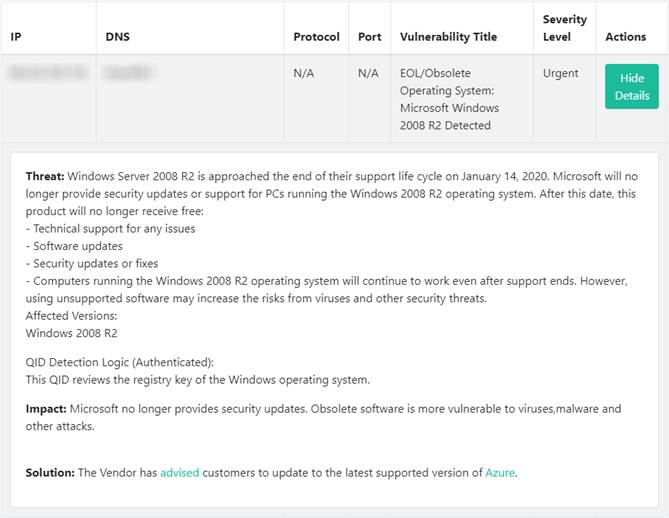
Once a scan is complete, the found vulnerabilities populate in the Remediate tab for assignment, tracking, and remediation. Vulnerabilities are sortable by internal or external hosts, IP address, DNS, vulnerability title, and severity level. Each vulnerability includes detailed information about the Threat posed, the Impact to your organization, and a Solution to resolve it.
All found vulnerabilities are automatically marked as “Unassigned” as they have not yet been addressed or remediated. From here, you can update the Status of vulnerabilities and/or assign remediation activities to yourself or other team members. Multiple vulnerabilities can be selected and assigned en masse to the appropriate team member.
Vulnerability Status for found vulnerabilities if Active. Status can be updated to one of the following based on your expertise and remediation activities:
It’s completely up to you who you include as Users within TraceInsight. We have many customers include their internal IT teams, managed services providers, and other vendors that they engage for their information security. Each member of your team likely has different areas of expertise, and can be assigned the vulnerabilities that make the most sense for them to manage and remediate.
Each user within the platform should use the “Vulnerabilities Assigned to Me” section for their assigned remediations. From here, they can review whether the vulnerability is legitimate, understand the threat and potential impact it poses, and use the Solution information for how to remediate the vulnerability.
The View Scan Results tab displays the combined raw scan results for all scans completed within the last 3 years. IP, DNS, Vulnerability Title, and Severity Level can filter results.
For each vulnerability, you can click “Show Details” to display its applicable Threat, Impact, and/or Solution information, like the example below:
Use this tab to export a CSV of the raw scan results for any scans that have been completed within the last three years. Scans can be sorted by Title, Targets, Qualys Reference ID, Launch Date, or Duration. Multiple scans can be selected and exported together into a single CSV.
Use the Generate Report tab to download vulnerability scan results and findings into an executive-style PDF report. These formatted reports include up to 40 of your top priority vulnerabilities. Your top priority vulnerabilities will be the highest severity vulnerabilities affecting your most critical devices. Results are automatically separated between internal and external findings.
There is also an option to export full scan reports in CSV format. This will include comprehensive data on all vulnerabilities of every severity type.
No matter which report type you choose to download, multiple scans can be selected and generated into one cohesive report.
The TraceInsight Vulnerability Manager User Guide includes everything you need to know about setting up and running scans, managing remediations, exporting results, and more.
If you can’t find your answers in the User Guide, TraceSupport is available during normal business hours for any issues you may run into. They can be contacted by phone at 877-798-7223 or by email at support@tracesecurity.com.
Looking for a fresh set of eyes on your vulnerability management program? Our information security analysts can provide expertise on a one-time assessment or run regular scans on your behalf. TraceSecurity offers 3 types of vulnerability assessment services:
During our standard vulnerability assessment service, our analysts use the Qualys scanner appliance to perform scans against your environment. Using their expertise, they will review the scan results and make sure findings and priorities are in line with your company’s goals. Analysts will provide comprehensive reports and review findings with you to make sure you understand remediation recommendations and next steps.
A step above our standard service, the RTVA adds advanced manual testing and our proprietary network security profile questionnaire. Our analysts will manually validate found threats and determine your network security adherence to best practices.
Our most robust vulnerability assessment service, the OTVA, adds onsite testing and review of physical vulnerabilities. While onsite, our analysts will perform a wireless access point configuration review, physical security review, and dumpster dive to determine the potential of onsite threats and adherence to proper policies and procedures.
Vulnerability management must be an integral part of any organization’s information security program. With new vulnerabilities being discovered almost daily, you need to have a solid system in place for discovery, remediation, and tracking.
Ready to improve your vulnerability management program? Get in touch today!